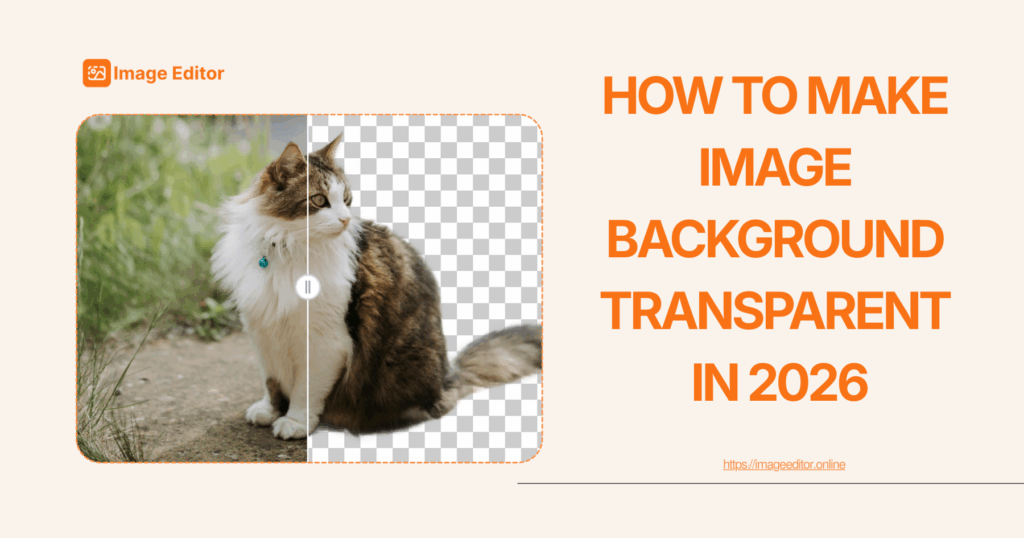
In the visually driven world of 2026, knowing how to make background transparent is no longer just a skill for professional graphic designers - it is a necessity for everyone. Whether you are a social media influencer creating viral stickers, a small business owner listing products on Amazon, or a corporate employee trying to fix a messy logo for a presentation, the background of your image can make or break your visual impact.
Introduction
For years, the answer to the question "how to make background transparent" involved expensive software, a steep learning curve, and hours of frustration using the "Pen Tool" or "Magic Wand" in Photoshop. But times have changed. The rise of artificial intelligence has revolutionized image editing, turning what used to be a 20-minute chore into a 3-second task.
In this comprehensive guide, we will explore the most efficient methods for how to make background transparent online. We will dive deep into the step-by-step process, compare the new AI tools against traditional software, and troubleshoot common issues like rough edges or hair masking. At the heart of this revolution is the powerful Nano Banana model, a cutting-edge AI designed specifically to handle complex edge detection instantly.
If you are ready to master how to make background transparent without installing any software, keep reading.
How to Make Image Background Transparent (Step-by-Step)
The process of removing a background used to be manual and tedious. Today, thanks to browser-based AI tools, learning how to make background transparent is as simple as clicking a few buttons. Below is a detailed, fail-safe guide to getting a perfect cutout every time using our specialized tool.
Step 1: Upload Your Image
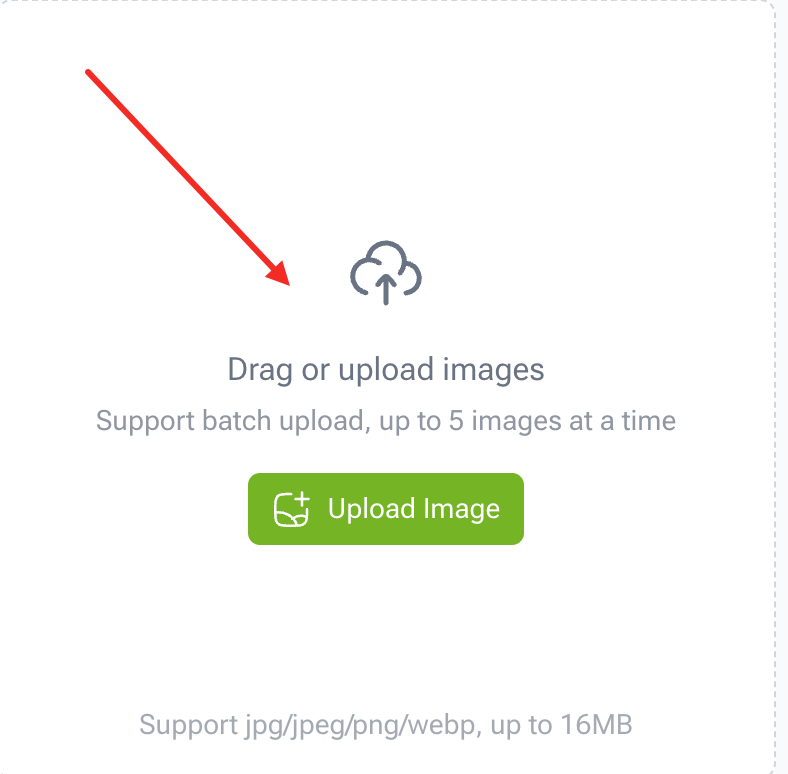
The first step in understanding how to make background transparent is selecting the right source image. While modern AI is powerful, starting with a high-quality image ensures the best results.
Navigate to the upload area of the editor. You can typically drag and drop your file or click to browse your device. Our platform supports a wide variety of formats, including JPG, PNG, and WebP.
- Pro Tip: If you are trying to figure out how to make background transparent for a product photo, try to ensure the original photo has decent lighting. While the AI can handle clutter, good contrast between the subject and the background helps the algorithms work even faster.
Step 2: Let AI Auto-Remove the Background
This is where the magic happens. Once your image is uploaded, you don't need to manually trace the edges of your subject. The system utilizes the advanced Nano Banana AI model to analyze the image composition.
When you initiate the process to how to make background transparent, the AI performs several complex operations in milliseconds:
- Subject Recognition: It identifies the primary focal point of the image (a person, a car, a pet, or a logo).
- Edge Detection: It maps the boundaries of the subject, distinguishing between foreground pixels and background pixels.
- Pixel Removal: It deletes the background pixels, effectively turning them "invisible" or transparent.
The beauty of learning how to make background transparent with this method is that the Nano Banana model is trained on millions of images. It understands that hair is semi-transparent and that solid objects have hard edges, adjusting its cutting technique accordingly.
Step 3: Download as PNG
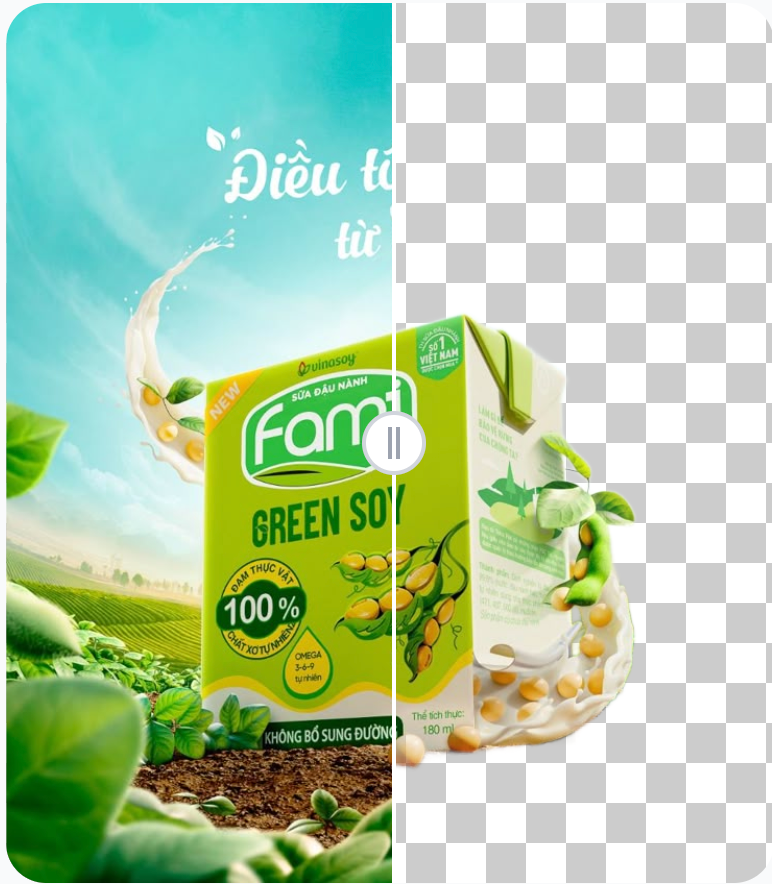
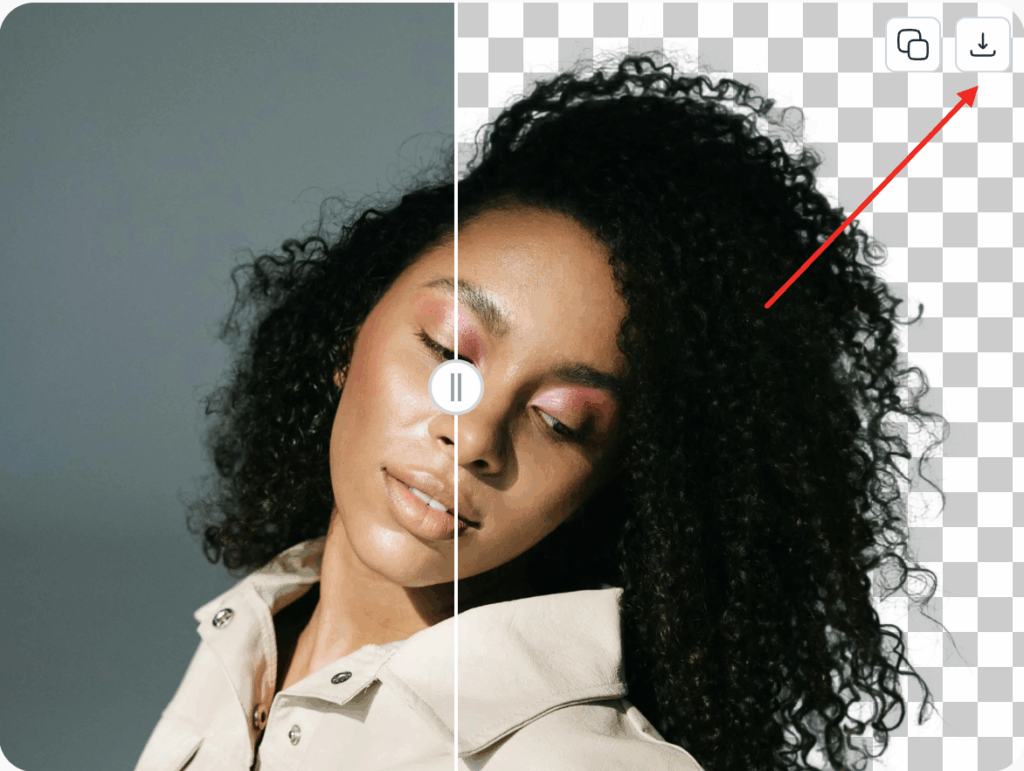
This is the most critical step that many beginners overlook when learning how to make background transparent. After the AI has done its job, you will see your subject sitting on a checkered background (the universal symbol for transparency).
You must download your file as a PNG.
- Why not JPG? The JPEG format does not support transparency (Alpha channels). If you save your edited image as a JPG, the transparent background you just created will turn white, undoing all your work.
- The Rule: Whenever your goal is how to make background transparent, always finish by saving as a PNG. This ensures that when you place your image over another background—like a website header or a colorful poster—only the subject will be visible.
Why Use an Online AI Tool Instead of Photoshop?
For decades, Adobe Photoshop was the only serious answer to how to make background transparent. However, for 90% of users, Photoshop is overkill. Here is why switching to an online AI solution is the smarter choice for 2026.
Speed: 3 Seconds vs 10 Minutes
Time is money. In Photoshop, the workflow for how to make background transparent usually looks like this: Open software -> Load image -> Select Object Tool -> Refine Edge -> Fix Mask -> Export. Even for a pro, this takes time.
With our AI tool, the answer to how to make background transparent is instantaneous. The entire process takes approximately 3 seconds. If you have to process 50 product photos for an e-commerce store, the AI method saves you hours of manual labor.
Zero Cost & No Installation
Photoshop requires a paid monthly subscription and a powerful computer to run smoothly. It also requires you to install gigabytes of software.
In contrast, our online solution allows you to figure out how to make background transparent directly in your web browser (Chrome, Safari, Edge, etc.). You can do it on a Chromebook, a library computer, or even your smartphone. By removing the barrier to entry, we make professional design accessible to everyone. You don't need to pay a subscription just to learn how to make background transparent for a single logo.

Common Use Cases for Transparent Images
Why are so many people searching for how to make background transparent? The applications are endless. Once you liberate your subject from its background, you can use it anywhere.
For Business Logos & Icons
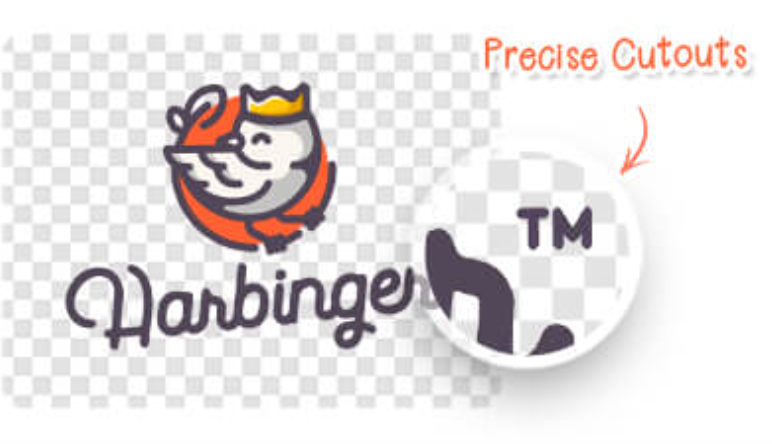
This is perhaps the most common reason businesses search for how to make background transparent. Often, companies have their logo saved as a JPG with a white box around it. When they try to put this logo on a colored website footer or a dark PowerPoint slide, that white box looks unprofessional.
By using the AI remover, you can instantly isolate the logo. A transparent logo blends seamlessly into any design, making your brand look polished and legitimate. Knowing how to make background transparent is an essential skill for any marketing assistant or web developer.
For E-commerce Product Photos
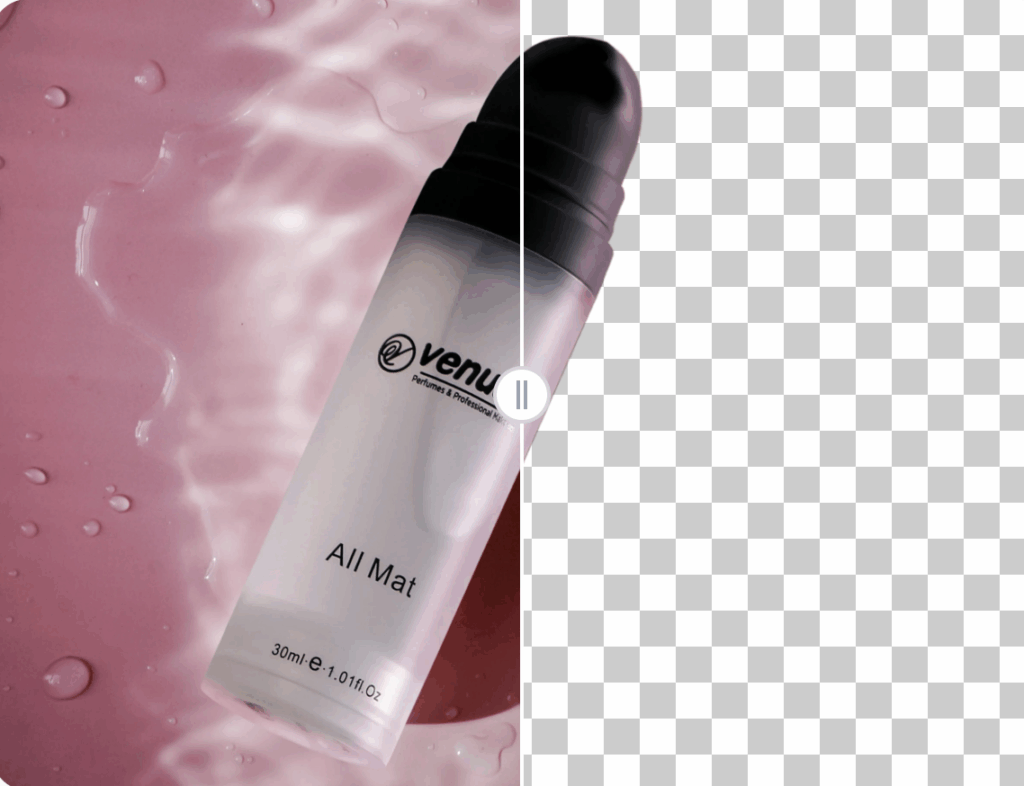
If you sell on Amazon, eBay, or Shopify, you know the rules: product photos must be on a pure white or transparent background. Taking photos in a professional studio is expensive.
Instead, sellers are learning how to make background transparent using AI. You can take a photo of your product on your kitchen table, upload it to the tool, and remove the cluttered background instantly. You can then place the product on a white background or create a lifestyle composite. This is the secret to high-conversion product listings.
For Digital Signatures
As the world goes paperless, signing PDF documents digitally is routine. However, scanning a signature often results in a gray, ugly paper background.
Knowing how to make background transparent allows you to extract just the ink from your signature. You can then overlay your clean, transparent signature onto contracts, invoices, and letters without blocking the text behind it. It looks exactly like a real pen-on-paper signature.
Common Problems and How to Fix Them
While AI has made the process of how to make background transparent incredibly easy, users sometimes encounter challenges with complex images. Here is how to troubleshoot them.
Rough Edges or Missing Details
Sometimes, the AI might cut off a tiny part of the subject or leave a thin "halo" of the old background. This usually happens if the subject blends too much with the background color (e.g., a white shirt on a white wall).
The Fix: When searching for how to make background transparent with precision, try to use high-contrast images. If the edge is rough, you can often use the tool's manual "Restore/Erase" brush to touch up the edges. However, the superior edge detection of the nano banana model usually minimizes this issue significantly compared to older algorithms.
Hair and Complex Background Issues
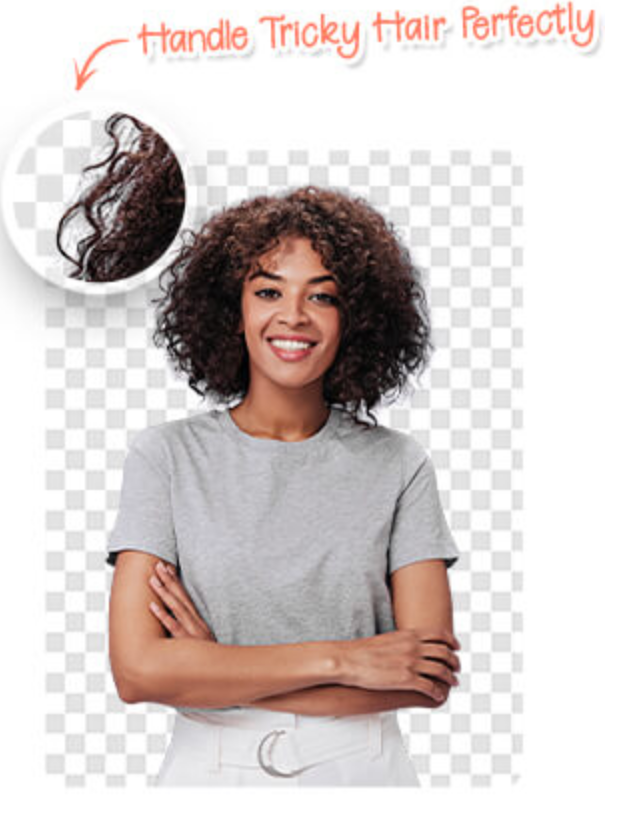
Hair is the nightmare of background removal. Strands of hair are semi-transparent, meaning you can see the background through them. Traditional tools fail here, resulting in a "helmet hair" look.
The Fix: This is where choosing the right tool matters. If you are struggling with how to make background transparent on a portrait, you need a model specifically trained on human segmentation. Our tool uses advanced alpha matting to calculate the transparency of individual hair strands, ensuring the cutout looks natural.
Low-Resolution Source Images
If your original image is blurry or pixelated, the AI will struggle to define where the object ends and the background begins.
The Fix: The golden rule of how to make background transparent is "Garbage In, Garbage Out." Always try to use the highest resolution image available. If you only have a small image, consider using an AI Image Upscaler before removing the background to define the edges better.
FAQs About Making Image Background Transparent
Is it free to learn how to make background transparent using this tool?
Yes, our basic tools are 100% free. You don’t need a credit card or expensive software subscriptions to learn how to make background transparent. Simply upload your photo directly in your browser, let the AI remove the background instantly, and download your result. It is the most accessible way to get professional-quality cutouts for personal or commercial use at no cost.
Does removing the background affect image quality?
No. When you use our tool to figure out how to make background transparent, the AI only affects the alpha channel (transparency). The resolution and color quality of your main subject remain exactly the same as the original photo.
Can I process multiple images at once?
Many users looking for how to make background transparent need to edit batches of photos. While the browser interface is often one-by-one for precision, our backend technology is capable of high-volume processing for enterprise needs.
Why is my downloaded image showing a black background?
This is a common viewer issue. When you successfully learn how to make background transparent and save as a PNG, some image viewers display transparency as black, white, or a checkerboard. Try opening the file in a web browser or placing it in your design software to verify that it is indeed transparent.
Is it safe to upload my private or business images?
Security is a top priority for anyone searching how to make background transparent online. When you use our tool, your images are processed securely. We do not use your personal photos to train our public models without permission, nor do we sell your data to third parties. All processing happens transiently; once you download your result, the file is typically purged from our temporary cache to ensure user privacy. Whether you are editing a confidential business contract signature or a private family photo, you can trust that the platform is designed with data protection in mind.
Will the downloaded image have a watermark?
No, we believe in providing a professional result. Unlike many other free services that stamp their logo on your work, our tool offers clean downloads. When you use our platform to learn how to make background transparent, the final PNG file is completely free of watermarks. This means you can use your image immediately for business presentations, websites, or social media without any distractions.
Can I add a new background after removing the old one?
Yes! Once you understand how to make background transparent, you have full creative control. After the removal process, our editor allows you to add a new layer behind your subject. You can instantly replace the transparency with a solid white color (perfect for Amazon listings), a custom gradient, or even upload a new scenic photo to serve as the background before saving.
What file formats are supported for upload?
Our tool supports all major image formats, including JPG, PNG, and WebP. You don't need to convert your files before uploading. Simply drag and drop your image, and the AI will handle the rest. Regardless of the original format, the system knows exactly how to make background transparent and will always allow you to export the final result as a high-quality PNG file.
Conclusion
Mastering how to make background transparent is a superpower in the digital age. It saves you time, saves you money, and elevates the quality of your visual content. You no longer need to be a Photoshop wizard or hire a freelance designer to get professional results.
Whether you are cleaning up a logo, prepping product photos, or just making fun memes, the technology is now at your fingertips. By leveraging the power of the nano banana AI model, you can achieve clean, crisp cutouts in seconds, not hours.
Stop struggling with complex tools. Start creating. Now that you know exactly how to make background transparent, give it a try and transform your images today.